WorkX Chair
Sitting well is not about holding a rigid posture all day. It is about supporting your body while allowing natural movement. An ergonomic chair can reduce pressure on your lower back, hips, shoulders, and neck. However, even the best chair cannot correct every poor habit. Your desk height, monitor position, and daily movement also matter. Small changes matter.
This guide explains How to sit properly in an ergonomic chair for 8 hours, using practical principles from workplace ergonomics and occupational health guidance. Your feet should rest flat on the floor, or on a stable footrest. Keep your knees near hip level, with both thighs supported by the seat. Adjust the lumbar support until it fills the curve above your pelvis without pushing you forward. Your shoulders should remain relaxed, not lifted toward your ears. Place the monitor close to eye level, so your chin does not slowly drop during long tasks.
A useful test is simple: stand up after thirty minutes and notice where tension has gathered. Is one hip carrying more weight? Are your wrists bent against the desk edge? These details reveal problems that a quick posture check may miss. I still catch myself leaning toward the screen when concentrating, which shows why comfort alone is not enough. A correct setup needs regular reassessment. Shift position, stretch briefly, and walk when possible. Perfect posture is unrealistic. Consistent support and frequent movement are more reliable goals.
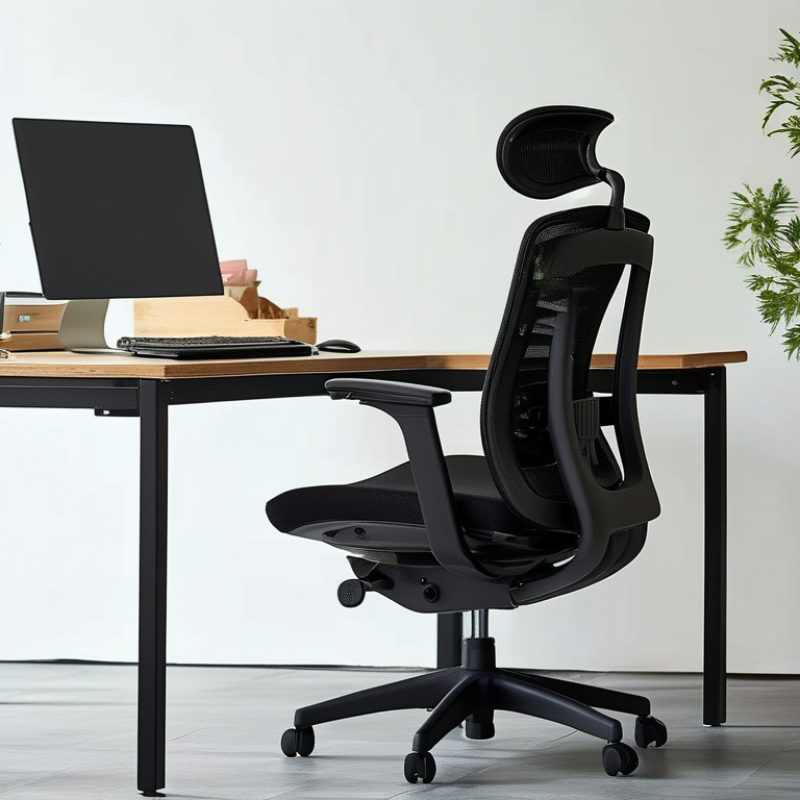
How to Sit Properly in an Ergonomic Chair: 8 Tips
Understanding ergonomic sitting begins with balance, not stiffness. Keep both feet flat on the floor, or use a footrest if they do not reach comfortably. Adjust the seat height so your knees stay level with, or slightly lower than, your hips. Leave two or three fingers of space between the seat edge and your knees. Sit fully back and let the chair support your pelvis. Keep your lower back gently supported, without forcing an exaggerated curve. Relax your shoulders and allow your elbows to rest near your body. Place your keyboard and mouse close enough to prevent reaching. Keep your screen near eye level, about an arm’s length away.
Small details matter. Your head should remain balanced over your shoulders, rather than drifting toward the screen. Keep your wrists neutral and avoid pressing them hard against a desk edge. Change position regularly. Even a well-adjusted chair cannot make stillness harmless for hours. Stand, walk, or stretch briefly every 30 to 45 minutes. A timer can help when concentration takes over.
I still catch myself leaning forward during detailed work. That habit is common, but it deserves correction. Ergonomic sitting is not about holding one perfect pose all day. It is about reducing strain while allowing natural movement. If your chair causes numbness, persistent pain, or pressure behind your knees, adjust it again and consider advice from a qualified health professional. Comfort is useful evidence, but it is not the only measure.
Adjusting the chair should come before adjusting your posture. The U.S. Bureau of Labor Statistics reported that musculoskeletal disorders caused 27% of private-industry days-away-from-work cases in 2023. That figure makes small setup decisions worth attention. Set the seat height so both feet rest flat, with knees near hip level. Leave two or three fingers of space between the seat edge and your knees. Adjust the seat depth. Your lower back should touch the backrest without forcing your shoulders backward. Place the lumbar support at your belt line, then recline the backrest slightly, around 100 to 110 degrees.
Keep your shoulders relaxed. Adjust the armrests until your elbows stay near 90 degrees, without lifting your shoulders. If the armrests interfere with the desk, lower them or remove them. The Occupational Safety and Health Administration advises keeping the monitor directly in front of you, with its top at or slightly below eye level. Keep the screen about an arm’s length away. Your wrists should remain straight, not bent upward. Move the keyboard and mouse close to your body.
I used to raise my chair too high and blame the desk for shoulder tension. The real problem was poor alignment. It happens easily. Change one setting at a time, then sit for several minutes before judging it. NIOSH notes that neutral postures reduce unnecessary muscle strain, but no chair can replace movement. Stand, walk, or stretch briefly every 30 minutes. Track discomfort rather than chasing a perfect posture. Your body may need a different setup tomorrow.
Positioning your feet, legs, and hips correctly creates a stable base for comfortable sitting. Keep both feet flat on the floor, with your toes pointing forward or slightly outward. Your knees should stay near a 90-degree angle, or open slightly beyond it. Avoid pulling your feet beneath the chair. This can tighten your hips and shift pressure onto your lower back. Let your thighs rest evenly on the seat without pressing hard against its front edge.
Tips: Adjust the seat height until your feet feel grounded. If they dangle, use a firm footrest. Keep your knees roughly level with, or slightly lower than, your hips. Leave a small gap behind your knees. Do not force your legs into one rigid position.
Your pelvis should remain neutral, not rolled backward or pushed sharply forward. Sit back gently so your hips contact the chair’s support. Keep your weight balanced between both sitting bones. Crossing your legs occasionally is usually harmless, but holding that position for hours may create uneven tension. Change positions regularly. Small movements often help more than chasing perfect posture.
I still notice myself sliding forward during long tasks. That habit is easy to miss. A quick reset helps: feet grounded, hips back, knees relaxed, and shoulders loose. If discomfort continues, review the chair’s adjustments and consider professional guidance.
Your back should meet the chair’s backrest, with the lumbar curve supported gently. Avoid sliding forward, even during long writing sessions. Keep your shoulders relaxed, not lifted toward your ears. The U.S. Occupational Safety and Health Administration identifies awkward postures and prolonged static positions as common ergonomic risk factors. I often see people adjust the chair but ignore their shoulders. That small mistake can create tension by lunchtime.
Keep your head balanced above your shoulders, rather than pushing your chin toward the screen. Position the monitor near eye level, about an arm’s length away. Your elbows should stay close to your body, bent around 90 degrees. Let your forearms rest lightly on the desk or armrests. Do not force a perfectly straight posture. Human bodies move. Your wrists should remain neutral, and your hands should float comfortably over the keyboard. Small adjustments matter.
Keep both feet supported on the floor or a footrest. Your knees should remain roughly level with your hips. Change position every 30 to 60 minutes, even if the posture feels correct. The World Health Organization’s 2020 guidelines recommend limiting sedentary time and completing 150 to 300 minutes of moderate activity weekly. A chair cannot replace movement. I still catch myself leaning toward the screen when concentrating. That is useful feedback, not failure.
Healthy sitting is not a frozen posture. It is a pattern of small adjustments repeated throughout the day.
Set the chair height so your feet rest flat and your knees stay near hip level. Keep your lower back supported, but avoid forcing an exaggerated arch. Sit close to the desk. Let your elbows remain near your sides, with forearms roughly parallel to the floor. Keep your monitor at eye level, about an arm’s length away. Relax your shoulders. Place both feet evenly, rather than leaning on one hip. These practical recommendations reflect guidance from the Occupational Safety and Health Administration’s Computer Workstations eTool.
Movement matters more than perfect alignment. The World Health Organization’s 2020 Guidelines on Physical Activity and Sedentary Behaviour advise adults to limit sedentary time and replace it with activity whenever possible. Try standing during a phone call, walking for two minutes after a meeting, or changing position before discomfort appears. A timer can help, but it should not become another source of stress.
I still catch myself sliding forward after long writing sessions. That mistake is useful feedback. The chair cannot repair every habit. Check your posture when your chin moves toward the screen or one shoulder rises. Adjust gently, breathe normally, and move again. Even short activity breaks may feel inconvenient, yet they often protect attention better than forcing another motionless hour.
| Tip | Posture or Adjustment | Practical Target | How to Check It | Expected Benefit | Recommended Frequency |
|---|---|---|---|---|---|
| 1 | Keep both feet supported | Feet flat on the floor or on a stable footrest | Your feet should feel fully supported without dangling or pressing heavily into the chair base. | Promotes lower-body stability and reduces pressure behind the knees. | Check whenever you sit down |
| 2 | Set the seat height correctly | Knees approximately level with or slightly lower than the hips | Adjust the chair so your thighs are supported while your feet remain firmly supported. | Helps distribute weight more evenly and supports a neutral lower-body posture. | Recheck after changing shoes or desk height |
| 3 | Use the backrest and lumbar support | Lower back gently supported at its natural inward curve | The lumbar support should contact your lower back without forcing your spine forward. | Supports the natural spinal curve and may reduce lower-back strain. | Adjust at the start of each work session |
| 4 | Keep your hips and knees comfortable | Hip and knee angles close to 90–100 degrees | Leave a small gap between the front edge of the seat and the back of your knees. | Reduces concentrated pressure on the thighs and supports comfortable circulation. | Review whenever discomfort develops |
| 5 | Relax your shoulders and position your elbows | Elbows near the body at approximately 90–110 degrees | Raise or lower the armrests so your shoulders stay relaxed and your forearms are supported when needed. | May reduce tension in the neck, shoulders, and upper back. | Check during typing and mouse use |
| 6 | Place the monitor at a comfortable height | Top of the screen at or slightly below eye level | Position the screen so you can view it without repeatedly bending your neck forward or upward. | Helps maintain a more neutral neck position and reduces visual strain from awkward viewing angles. | Adjust after rearranging your workstation |
| 7 | Keep frequently used items close | Keyboard and mouse close enough to avoid reaching | Your elbows should remain near your sides while your hands reach the keyboard and mouse. | Limits repeated shoulder extension, wrist overreaching, and unnecessary twisting. | Organize before starting work |
| 8 | Change position and take movement breaks | Stand, walk, or stretch briefly every 30–60 minutes | Use a timer or natural task transitions as reminders to move and reset your posture. | Reduces prolonged static loading and encourages regular movement throughout the day. | Every 30–60 minutes |
: Keep both feet flat on the floor. Your knees should stay near hip level. Avoid dangling feet or raised shoulders. Small changes matter.
Leave about two or three fingers between the seat edge and your knees. This space prevents pressure behind your legs. If the edge touches your knees, reduce the seat depth.
Place the lumbar support near your belt line. Your lower back should touch the backrest gently. Do not force a deep arch. Support should feel present, not aggressive.
A slight recline can help. Try an angle around 100 to 110 degrees. Your shoulders should not be pushed backward. Comfort may require another setting tomorrow.
Keep your elbows near a 90-degree angle. Your shoulders should remain relaxed. Lower or remove armrests that hit the desk. Raised shoulders are useful feedback.
Keep the monitor directly in front of you. Its top should be at or slightly below eye level. Place it about one arm’s length away. Move the screen instead of leaning forward.
Keep them close to your body. Your wrists should remain straight. Avoid bending them upward. Let your forearms stay roughly parallel to the floor.
Change position before discomfort becomes strong. Stand, walk, or stretch briefly every 30 minutes. Try walking for two minutes after a meeting. A timer helps, sometimes.
Notice when your chin moves toward the screen. Check whether one shoulder rises or you slide forward. Adjust gently, breathe normally, and move again. There is no perfect posture.
Learning how to sit properly in an ergonomic chair begins with supporting your body rather than forcing it into a rigid position. Adjust the seat height so your feet rest flat on the floor and your knees remain level with or slightly below your hips. Keep your lower back supported, shoulders relaxed, and head balanced over your spine. Your elbows should stay close to your body at a comfortable angle, allowing your arms and wrists to work without unnecessary tension.
To understand how to sit properly in an ergonomic chair for 8 hours, remember that good posture is only part of the solution. Change positions regularly, stand up, stretch, and walk briefly throughout the day. Avoid leaning too far forward, crossing your legs for long periods, or remaining still when discomfort develops. With proper chair adjustments and healthy movement habits, you can reduce strain, improve comfort, and maintain better focus during extended sitting.